JD Fortune Login Problems: Can't Access Your Account? Try These Fixes
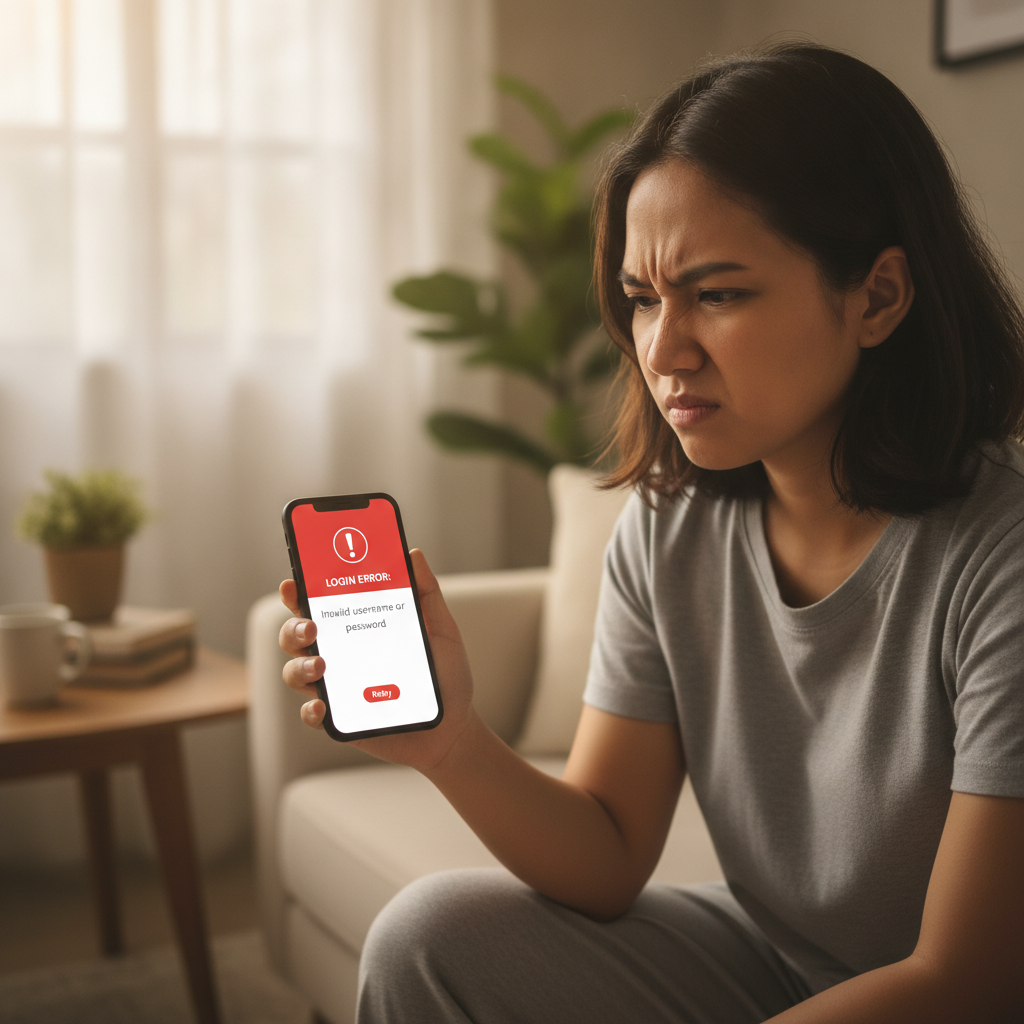
Common JD Fortune Login Errors and What They Mean
When you're trying to access JD Fortune on your phone and the login screen won't let you through, the platform usually shows one of a few error messages. Understanding what each means helps you fix it faster.
"Incorrect username or password" is the most common. You've either mistyped your mobile number or email, or the password doesn't match what's stored in the system. This happens often on small Android screens or when autocorrect changes a character.
"Account not found" means the username or mobile number you entered isn't registered in the JD Fortune database. You may have signed up with a different number or email than you remember.
"Account temporarily locked" or "Too many failed attempts" appears after several wrong password tries in a short window—usually three to five attempts. JD Fortune locks the account for a set period to prevent unauthorized access.
"Verification required" or "Please complete OTP verification" means the platform needs you to confirm your identity with a one-time PIN sent via SMS before it will let you in. This often triggers when you log in from a new device or after a long period of inactivity.
"Account suspended" is less common but serious. It indicates JD Fortune has restricted access, usually because of a terms-of-service issue, failed identity verification, or a withdrawal dispute under review.
How to Reset Your JD Fortune Password on Mobile
If you've forgotten your password or keep getting "incorrect password" errors, resetting it is straightforward on Android or iOS.
- Open the JD Fortune app (or visit the mobile site in your browser if you haven't installed the APK or iOS app yet).
- Tap "Login" on the home screen.
- Look for "Forgot Password?" below the password field and tap it.
- Enter your registered mobile number or email address. Make sure it's the same contact detail you used when you first signed up.
- Tap "Send OTP" or "Send Reset Link."** JD Fortune will send a one-time PIN to your phone via SMS, or an email with a reset link.
- Check your messages. SMS codes usually arrive within one to three minutes. If you chose email, check your inbox and spam folder.
- Enter the OTP in the app, or tap the link in the email.
- Create a new password. Use at least eight characters, mixing letters and numbers. Avoid obvious combinations like "12345678" or your birth year.
- Confirm the new password and tap "Submit."
- Log in with your mobile number or email and the new password.
If the OTP doesn't arrive after five minutes, tap "Resend code." You can usually request a fresh code two or three times before the system enforces a short cooldown.
Fixing 'Account Not Found' and OTP/SMS Verification Issues
Account Not Found
This error means JD Fortune has no record of the username, email, or mobile number you typed. Common causes:
- You registered with a different contact detail. Try the other mobile number you use, or the email address linked to your GCash or Maya account.
- You haven't actually registered yet. If you only browsed the site or downloaded the app but never completed sign-up, you'll need to create an account first. (Registration walkthroughs are covered on other guides; this article focuses on login troubleshooting for existing users.)
- Typo in the username field. Double-check every digit of your mobile number, including the leading zero or country code.
If you're certain you registered but still see "Account not found," contact JD Fortune support through live chat or the help email listed on the platform. Have your GCash reference number from your first deposit ready—it can help support locate your account.
OTP or SMS Not Arriving
When you don't receive the one-time PIN:
- Wait three to five minutes. Network delays are common, especially in provinces or during peak hours.
- Check your phone's signal. Weak 3G or LTE reception can delay SMS delivery.
- Restart your phone. A quick reboot often clears stuck messages.
- Make sure you haven't blocked short-code SMS. Some Android phones or carrier settings filter messages from automated senders. Check your blocked-numbers list and messaging app settings.
- Tap "Resend code" in the JD Fortune app after five minutes.
- Switch from SMS to email OTP if the platform offers that option. Some users find email codes arrive faster.
If OTP issues persist across multiple attempts, reach out to JD Fortune support. They can manually verify your account or switch your primary contact method.
When Your JD Fortune Account May Be Suspended and What to Do
JD Fortune may temporarily suspend or lock an account for several reasons:
- Failed identity verification. If the name on your valid ID doesn't match the name you gave during registration, or if the selfie you uploaded is unclear, the compliance team will pause your account until you resubmit documents.
- Disputed withdrawal. If you requested a cashout to GCash or Maya and there's a mismatch in account names, or if the platform flags unusual betting patterns, they may freeze access while investigating.
- Multiple failed login attempts from different IP addresses. This can look like someone else is trying to access your account, triggering a security lock.
- Terms-of-service violation. Using VPN software, sharing accounts, or placing bets from outside the Philippines can result in suspension.
What to do if you see "Account suspended":
- Don't try to create a second account. That will make reinstatement harder and may lead to permanent closure of both accounts.
- Contact JD Fortune customer support immediately. Use the live-chat feature on the website or app, or send an email to the support address listed in the Help section.
- Provide your registered mobile number, full name, and a brief description of when you first noticed the suspension.
- If the issue is verification-related, ask what documents are needed. Typically you'll submit a photo of a valid government ID (driver's license, postal ID, or national ID) and a selfie holding that ID.
- Upload clear, well-lit images. Blurry photos or cropped corners cause delays.
- Wait for a response. Support teams usually reply within 24 hours on weekdays, longer on weekends.
If your account was locked for security reasons—like too many wrong password tries—it often unlocks automatically after 30 minutes to one hour. You'll receive an SMS or email notification when access is restored.
Tips to Avoid Future Login Problems
- Save your password in a secure notes app or password manager on your Android device. Don't rely on memory alone.
- Keep your registered mobile number active. If you change SIM cards or phone numbers, update your contact details in your JD Fortune account settings before the old number stops working.
- Enable two-factor authentication (2FA) if JD Fortune offers it. This adds a layer of security and can prevent unauthorized login attempts.
- Log out properly after each session, especially if you're on shared Wi-Fi or using a public network. Tap the "Logout" button in the app menu rather than just closing the app.
- Avoid using VPNs when accessing JD Fortune. Logging in from IP addresses outside the Philippines can trigger security flags.
- Check your email and SMS regularly for messages from JD Fortune about verification requests or unusual activity.
21+ Only and Play Responsibly
JD Fortune is strictly for players aged 21 and over. If you find yourself logging in more often than you planned, or if chasing losses is affecting your budget, take a break. Set deposit limits in your account settings, or reach out to support to request a temporary self-exclusion. Gambling should stay entertainment, not a way to solve money problems.
This guide is an independent resource for existing JD Fortune players. It is not operated by or affiliated with JD Fortune. For official support, contact JD Fortune directly through their platform.